
Access Metrics
- Navigate to Monitoring module menu and click
Access Metrics tab.
Or
- Navigate to Security Intelligence module menu and click Access Metrics from the left panel.
Access Metrics offers an insightful dashboard that enables a detailed exploration of access card activity throughout the entire organization. This comprehensive overview empowers the organization to identify the highest door access frequency, thereby strengthening security measures. Additionally, it offers insights into the most common reject reasons behind access card rejections, enabling security teams to take appropriate actions in alignment with security protocols.
Access Metrics assists users in resolving challenges including the following:
- Gain insights into Partitions, Door Groups, and Tags for optimizing access control:
- Identify critical access points with the highest rejection rates, including timestamps and individuals involved. You can analyze access activity either by personnel or by door, which consolidates card activity data and presents the most active doors in a bar graph format.
- Recognize individuals with frequent access rejections and timestamps. You can look at Card Activity for each door individually on the information panels to the right of the bar graphs.
- Detect potentially suspicious behavior:
- Identify the individuals experiencing the highest rejection rates across the system, along with details of timestamps involved.
- Gain insights into door utilization to establish proactive maintenance:
- Identify the door with the highest activity levels and plan accordingly for maintenance.
In case of a Standalone system, it shows aggregate data for a single Server. In an Enterprise environment a global operator on the Master Application Server can visualize data across all Satellite Application Servers subject to operator privileges.
Refer Privilege Permissions for the privilege permissions and grants.
- No license - UI will display the error message
- Default month selected will be 1, if the license type is 1 (Default license supports 1 month data)
- Default month selected will be 1, if the license type is 2 (Premium license supports 14 months data)
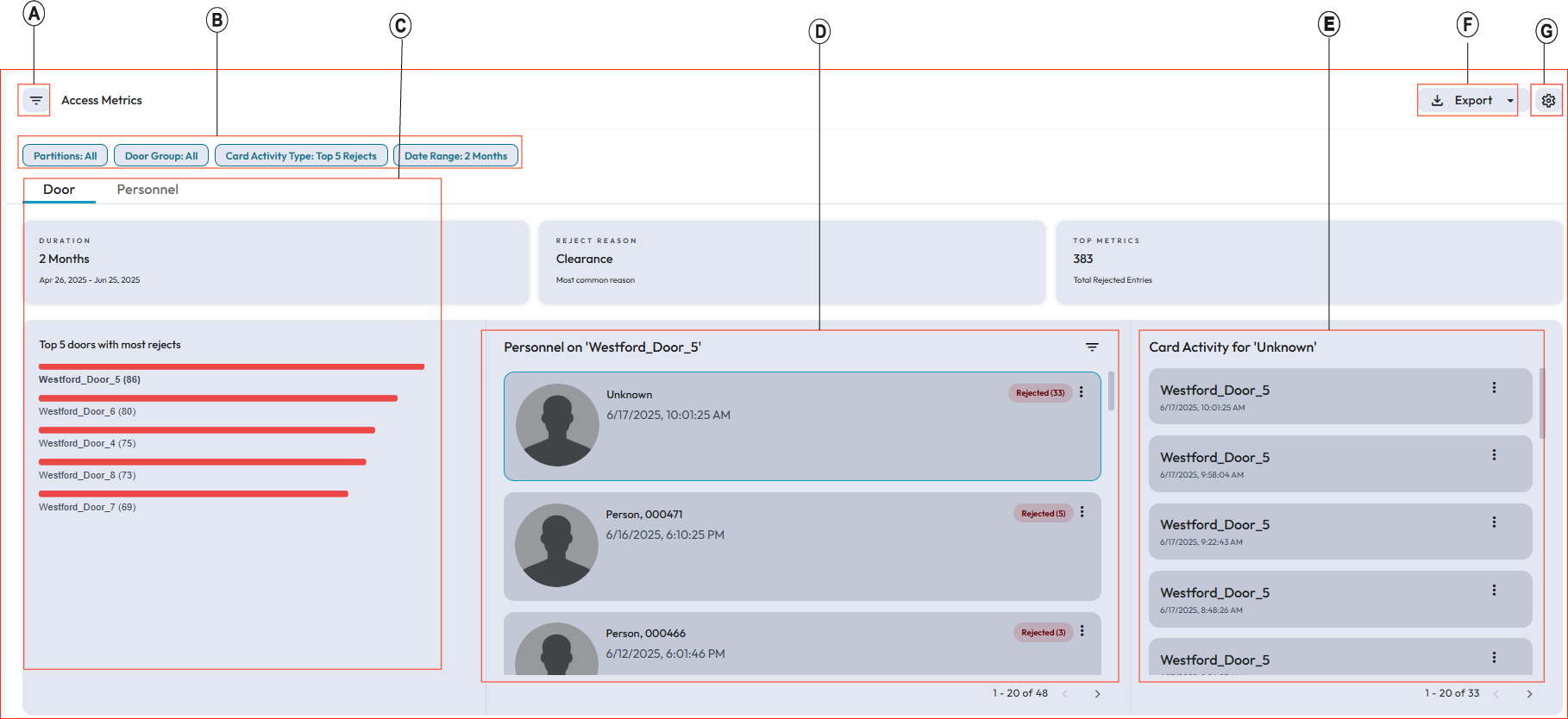
| Element | Description |
|---|---|
| A | Show and hide Filtering Tools This section narrow downs the search results based on the filters selected. For more information see Filtering Tools for Access Metrics. |
| B | Filter chips: Once you specify the filters and apply them, you can view all the selected filters on the top bar of the filtered data window after closing the Filter By pane. |
| C |
Bar Chart This panel displays the Door View with Door Swipe history and Personnel View with Personnel Swipe history. For more information see Bar chart. |
| D |
Card Activity History For more information see Card Activity History. Note:
The operator can choose to navigate to the next set of Door/Personnel listings using the Pagination feature located within this Panel under Personnel Results. |
| E |
Card activity for Personnel or Doors This panel displays the card activity of the Door. These activity details include Door name, Date, Time, and card status. Note: The operator can choose to navigate to the next set of Card
activity listings using the Pagination feature located within
this Panel under card activity for doors.
|
| F | Export the report to PDF or CSV format. |
| G |
Settings Icon. Click this icon to configure the duration, and also to set the Top N Doors. |
View/Edit Personnel: (Refer Options Icon in Common icons and fields ) Operator has an option to view/edit the Personnel details through C•CURE IQ. To Edit, operator must have the Edit permission and to View, operator can have only the read permission.
View Video: (Refer Options Icon in Common icons and fields ) Operators can view Personnel swipes on a specific door if a camera is associated to it; otherwise, an error message will display, indicating the no camera associated.
Enterprise: The information mentioned is applicable for both Master Application Servers and Satellite Application Servers.