
Virtual Headcount
- Navigate to the C•CURE IQ Home page and click Security
Intelligence. From the left panel, click Virtual
Headcount.
Or
- Navigate to the Monitoring module menu and from the right window, search for Virtual Headcount.
You can also access the Virtual Headcount widget from the following pre-configured web layouts within the Monitoring tab:
- Personnel Intelligence
- Last Known Location
Virtual headcount works in tandem with Last known location data. You can use it to quickly determine what group of people is at a particular location, such as Door Group, General Tags, Location Tags, and Partition.
This solution can help the security team respond to incidents by understanding who might still be in the area.
Furthermore, utilizing the Clear Location feature within the Virtual Headcount, it allows the operators to manually remove people from the headcount list.
Operators can also add notes to Personnel last known location to update their status.
For a defined filter criterion, user can go back in time up to 3 days to pull up the headcount.
- The Personnel who successfully gain admission against the Inreaders will be part of the headcount.
- The Personnel who successfully gain admission against the Outreaders will not be part of the headcount.
- Personnel Intelligence
- Virtual Headcount
- No license - UI will display the error message
- Default selected will display one day data, if the license type is 1 (Default license supports 30 days)
- Default selected will display one day data, if the license type is 2 (Premium license supports 425 days)
Refer Privilege Permissions for the privilege permissions and grants.
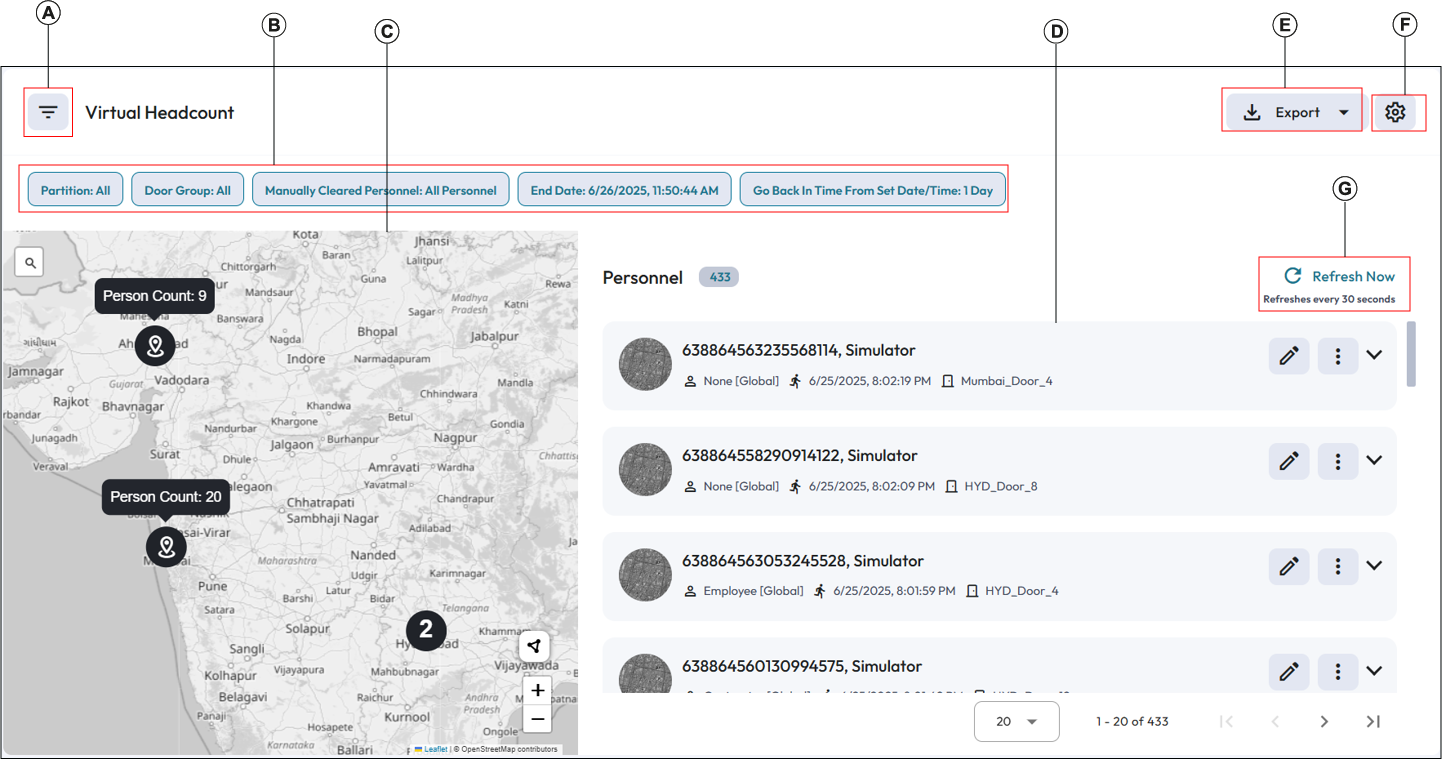
| Callout | Description |
|---|---|
| A |
Show or hide filtering tools Filters narrow downs the search results based on the filters selected. For more information see Filtering tools for Virtual Headcount. |
| B | Filter chips Once you specify the filters and apply them, you can view all the selected filters on the top bar of the filtered data window after closing the Filter By pane. |
| C |
Map Map displays the location PIN with Personnel swipe count details. Only swipes that are admitted are considered in maps. For more information see Map. |
| D |
Personnel Panel Personnel Card panel will be populated after data is retrieved. For more information see Virtual Headcount - Personnel. |
| E | Export the report in PDF or CSV format. |
| F |
Settings Icon. Click this icon on the top right of the toolbar to configure the Refresh frequency. For more information, see Refreshing frequency data. |
| G | Refresh icon. By default, data on dashboard keeps refreshing
automatically after every 30 seconds. For more details on refreshing frequency of data, see Refreshing frequency data. |
View/Edit Personnel: (Refer Options icon in Common icons and fields ) Operator has an option to view/edit the Personnel details through C•CURE Web. To Edit, operator should have the Edit permission and to View, operator can have only the read permission.
View Video: (Refer Options Icon in Common icons and fields ) Operators can view Personnel swipes on a specific door if a camera is associated to it; otherwise, an error message displays, indicating that no camera is associated.
Enterprise: The information mentioned is applicable for both Master Application Servers and Satellite Application Servers.