
Groups
Use the Create Group editor to create and edit groups of the same object types. For example, doors. You can configure objects that activate groups, such as inputs activating output groups, or events that specify actions for groups.
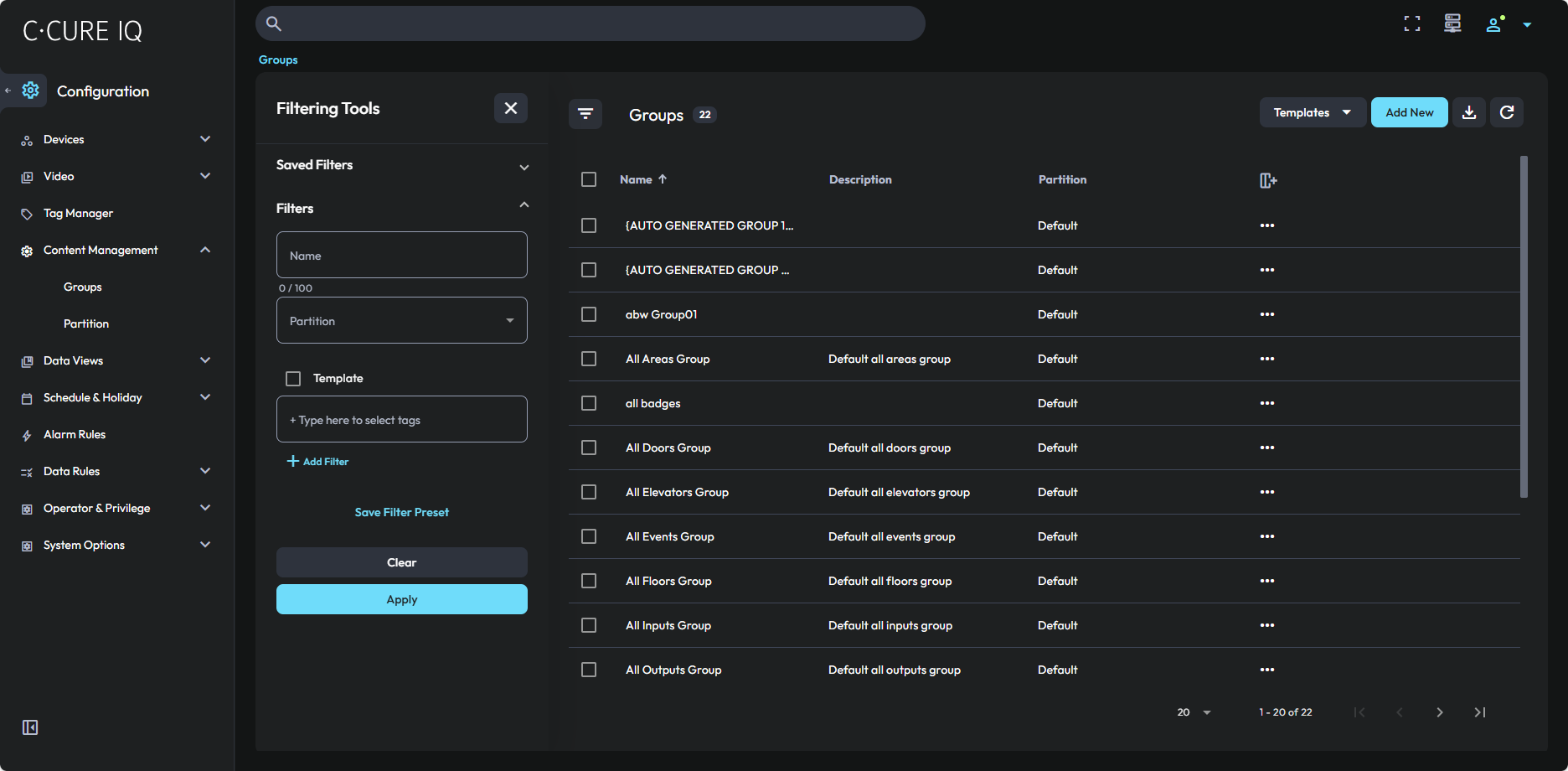
For example, if you want to arm certain inputs for specific times, you can group them together
and apply the schedule for them one time using an event, instead of configuring
schedules for each input separately.
Note: When you arm or activate
a group, you are arming or activating the individual objects listed in the group,
not the group itself. A group has no status, but the objects that compose it
do.
Group Rule
Use the Group editor to select a group rule that sets a criteria to a group of objects. The group rule available for selection is Support Expiring Clearances after you select the Door from the Group Type drop down menu. Select this rule if you want to create a group of doors and elevators that support expiring clearances per person.
For example, if you select Support Expiring Clearances as the group rule, then only
clearances with the expiring clearances per person option is available for
selection.
Note:
- The Support Expiring Clearances rule only supports for iSTAR Ultra doors and elevators.
- You cannot edit a door or elevator group with support expiring clearances if it is assigned to a clearance with expiring clearances per person.