When you view an indoor map, you can interact with the object and event icons that are added to
the map. If an event or an alert is active, you can interact with the object icons to
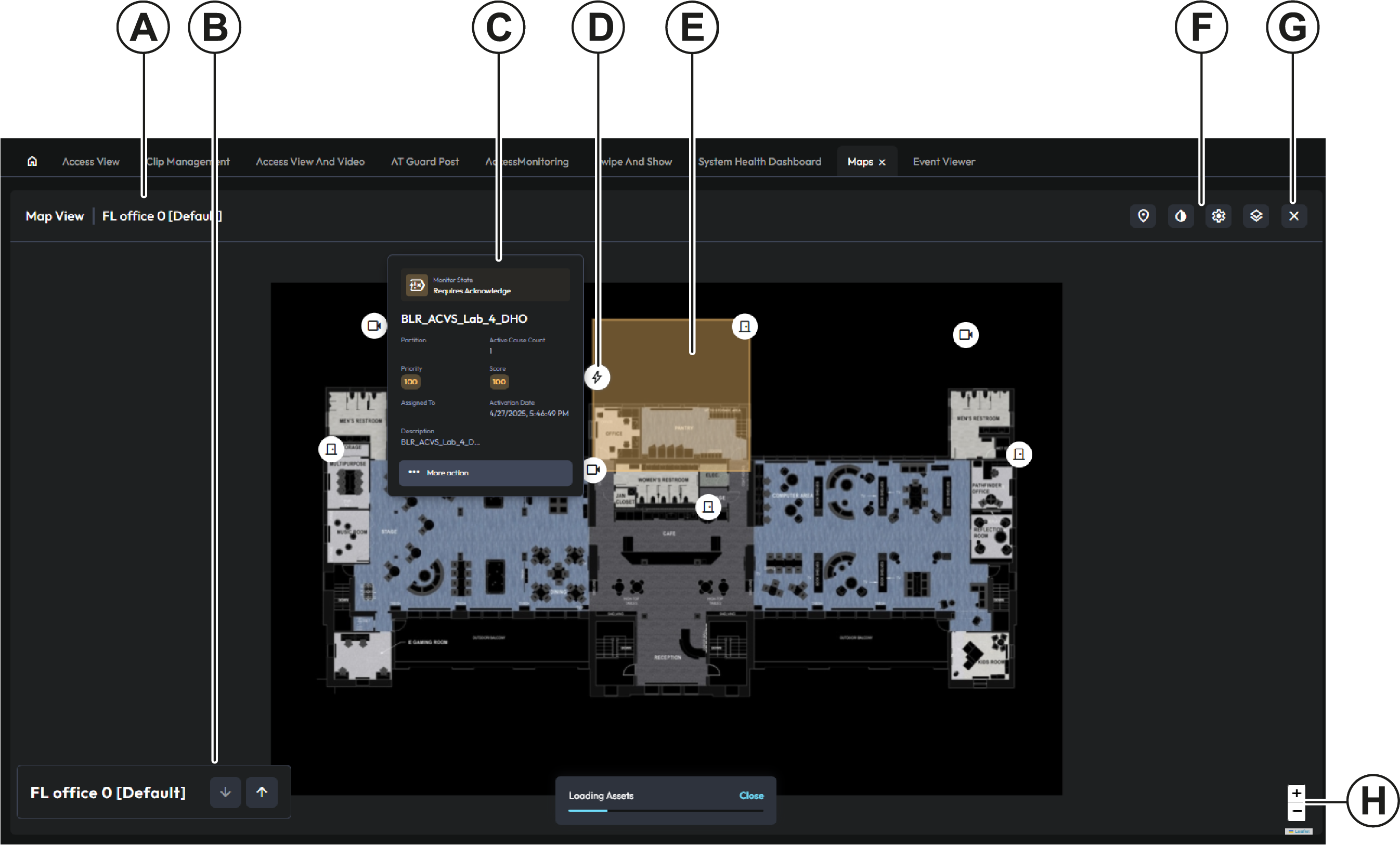
investigate the source of the alert. Figure 1. Indoor map view
Callout
Description
A
Map name
B
Map navigation buttons. If you create a map hierarchy, use these
buttons to navigate between the maps in the site. For more
information, see Tag context menu options.
C
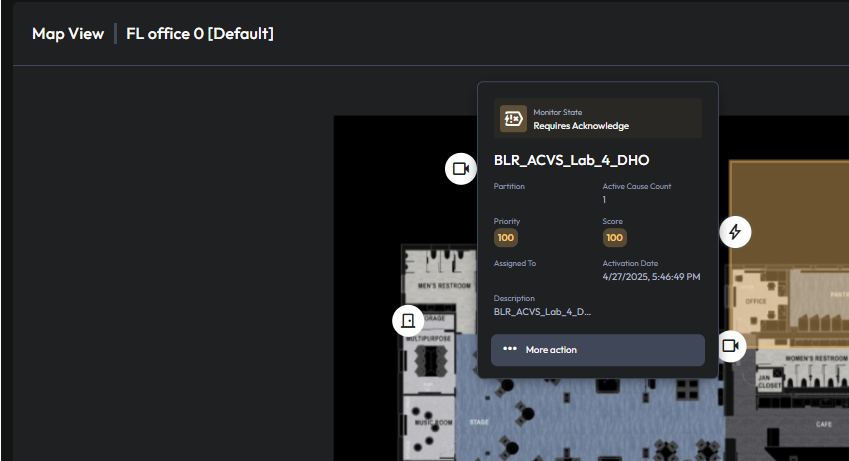
Hover over an object icon to display information about that
object. To access the object’s context menu, click More
action.
D
Object icon.
E
Map polygon shape. When an object icon inside a polgyon shape
goes into alert, the polygon also goes into alert.
F
Markers
Select this icon to open the Markers search pane.
From the Markers pane, you can view a list of the
markers that appear on the map. You can also use the
search field to search for markers by name. In sites
with multiple maps, if you navigate to a different
map, the list of markers updates automatically.
Grayscale
Select this icon to view a map in grayscale. Select
the icon again to disable greyscale.
Settings
Select this icon to display the map settings menu.
From this menu, you can toggle map shapes and camera
field of view indicators.
Search Indoor Maps
Select this icon to open the Indoor Maps search
pane. From the Indoor Maps pane, you can view a list
of the indoor maps that are configured in your
system. You can filter the list to show tagged maps,
untagged maps, or both. You can also use the search
field to search for indoor maps by name.
G
Click the exit button to close the indoor map.
H
Map zoom buttons.
Hover over an icon to display information about that object or event.
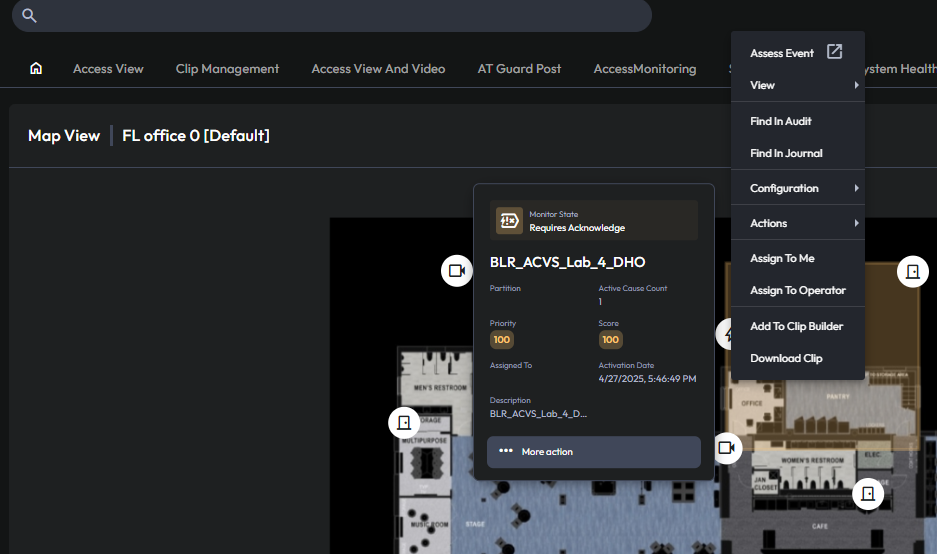
To access an object’s context menu, click the More action button or right-click the object
icon.
You can configure indoor maps in the map editor in C•CURE IQ or C•CURE 9000. For more information, see The Map editor.