
Maps
From the Maps tab, you can monitor multiple sites simultaneously. The icons on the global map represent the location tags that you configure in the Tag Manager. For information about creating location tags, see Tag Manager.
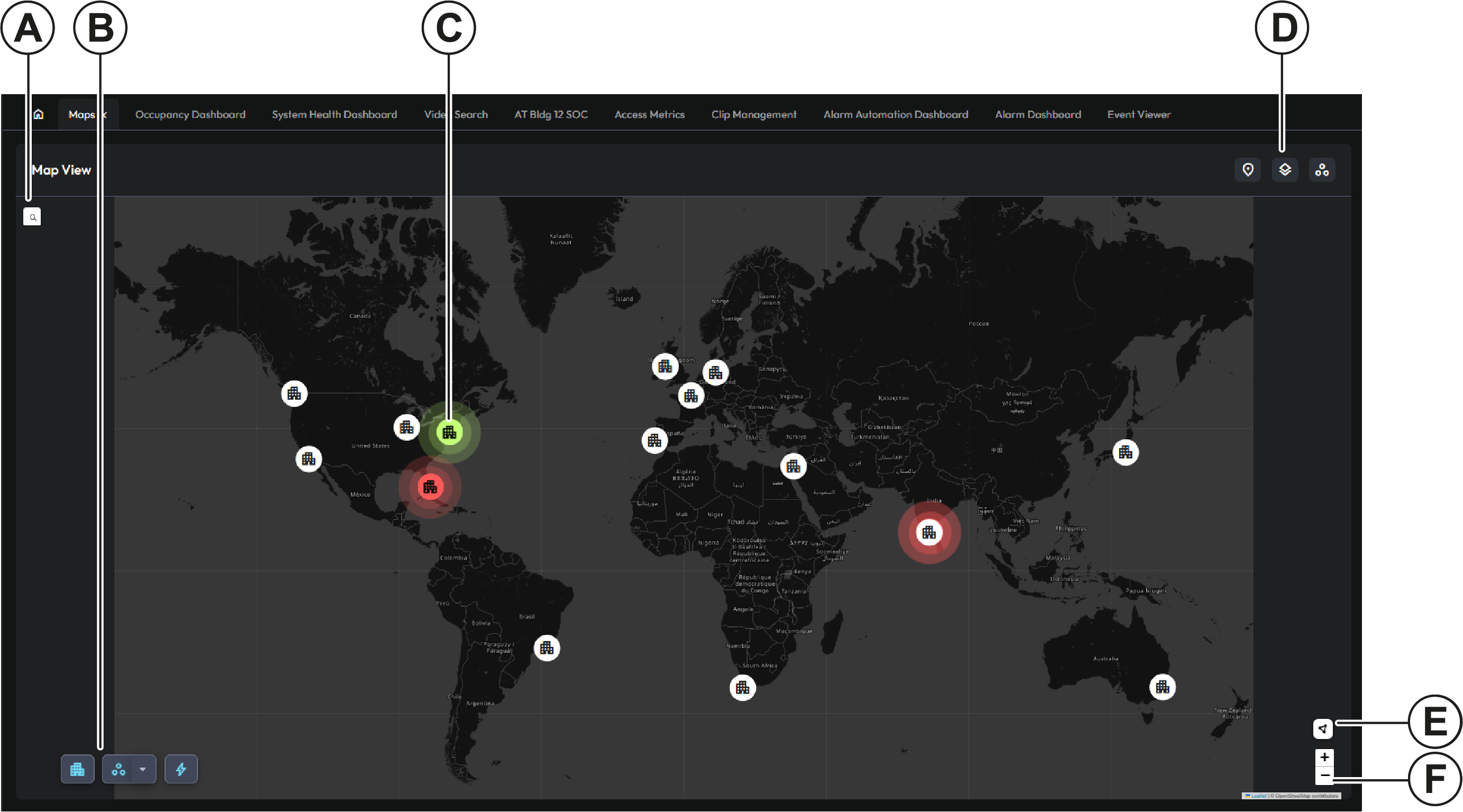
| Callout | Description |
|---|---|
| A | Search button. Click to open a search field. You can search for an address or place name. |
| B | Object icons. Click to display or hide locations, assets, or events. |
| C | Location icon. If an object goes into alert at a site, the location icon also goes into alert. |
| D | Object search icons for markers, indoor maps, or GIS Locations, Location Tag children, and Events. Click to open a pane where you can view a list of object types, and search for objects of that type. |
| E | Clusters. Click to switch between location icons and number icons. Where multiple sites are in close proximity, the number icon indicates the number of sites in that section of the map. To view individual site icons, use the zoom controls. |
| F | Map zoom buttons. |
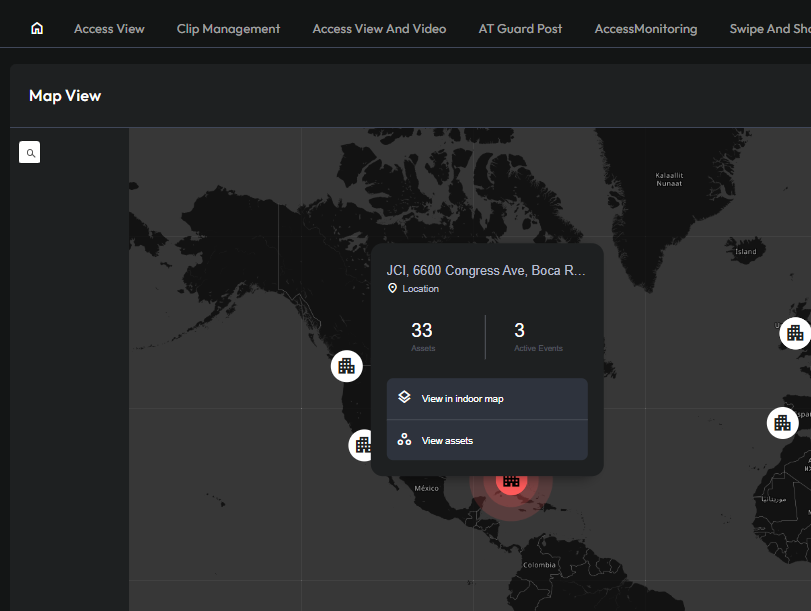
When you hover over a location tag, you can view objects or indoor maps that are associated with that location tag. If you assign a location tag to a map, the map becomes the internal map for that location. If you add object icons to the map, or if you assign the location tag to any objects, those objects become the assets for that location.
If you assign the location tag to multiple maps, you can create a map hierarchy, for example, to represent the different floors in a building. For more information, see Tag context menu options.