
Video monitoring
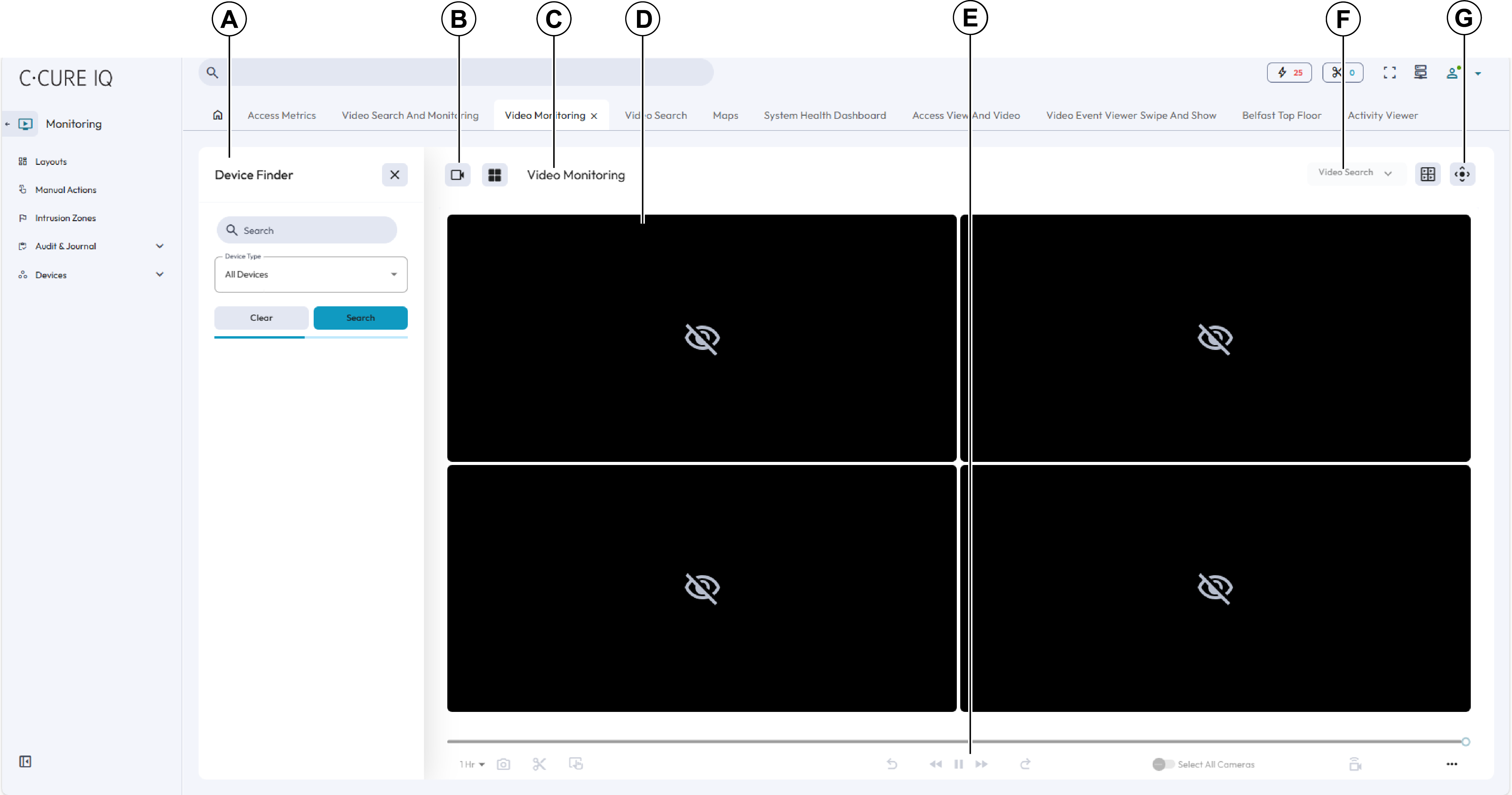
| Callout | Name | Description |
|---|---|---|
| A | Device Finder pane and Search Tools pane |
From this pane, you can perform a device search or a video search. On the Device Finder pane you can search for cameras, video views, or tours to display in the monitoring pane. Drag the object onto the monitoring pane. On the Search Tools pane you can perform a video search. Search results appear in the Video List. Click the Video Monitoring or Video Search button to switch between the Device Finder pane and the Video Search pane. |
| B | Video Monitoring and Video Search toggle |
Click this button to show or hide the Device Finder or Video Search pane. |
| C | Video monitoring pane |
From this pane you can view live video, video views, and video tours. You can also drag video search results onto individual panes. |
| D | Video pane | Displays video from a camera,
video view, video tour, or search result. Double-click the pane to switch
between global controls and single-pane controls. Note: If you move to another tab or screen while a live video is
streaming, video playback stops until you return to the live video
viewer. |
| E | Video controls | These icons include the video playback controls, clip and snapshot creation, and video settings. For more information, see Video controls. |
| F | Video Search button or Video Monitoring button |
Click this button to switch the module between video monitoring and video search. Click the Video Search button to display the video search features. Click the Video Monitoring button to display the video monitoring features. |
| G | Toggle camera controls | Click this icon to show or hide the camera
controls pane. From this pane, you can use pan tilt zoom (PTZ) or virtual PTZ
(vPTZ) camera controls, camera zoom controls, enable fisheye dewarping, and
toggle Picture in Picture (PIP) mode. To enable PTZ or vPTZ controls, select a
video pane that contains a compatible camera. Note: Virtual PTZ is not supported on Exacq cameras. |
You can monitor video from any System layout or Custom layout that contains the Video Monitoring module. For more information about configuring custom web layouts, see Creating a web layout
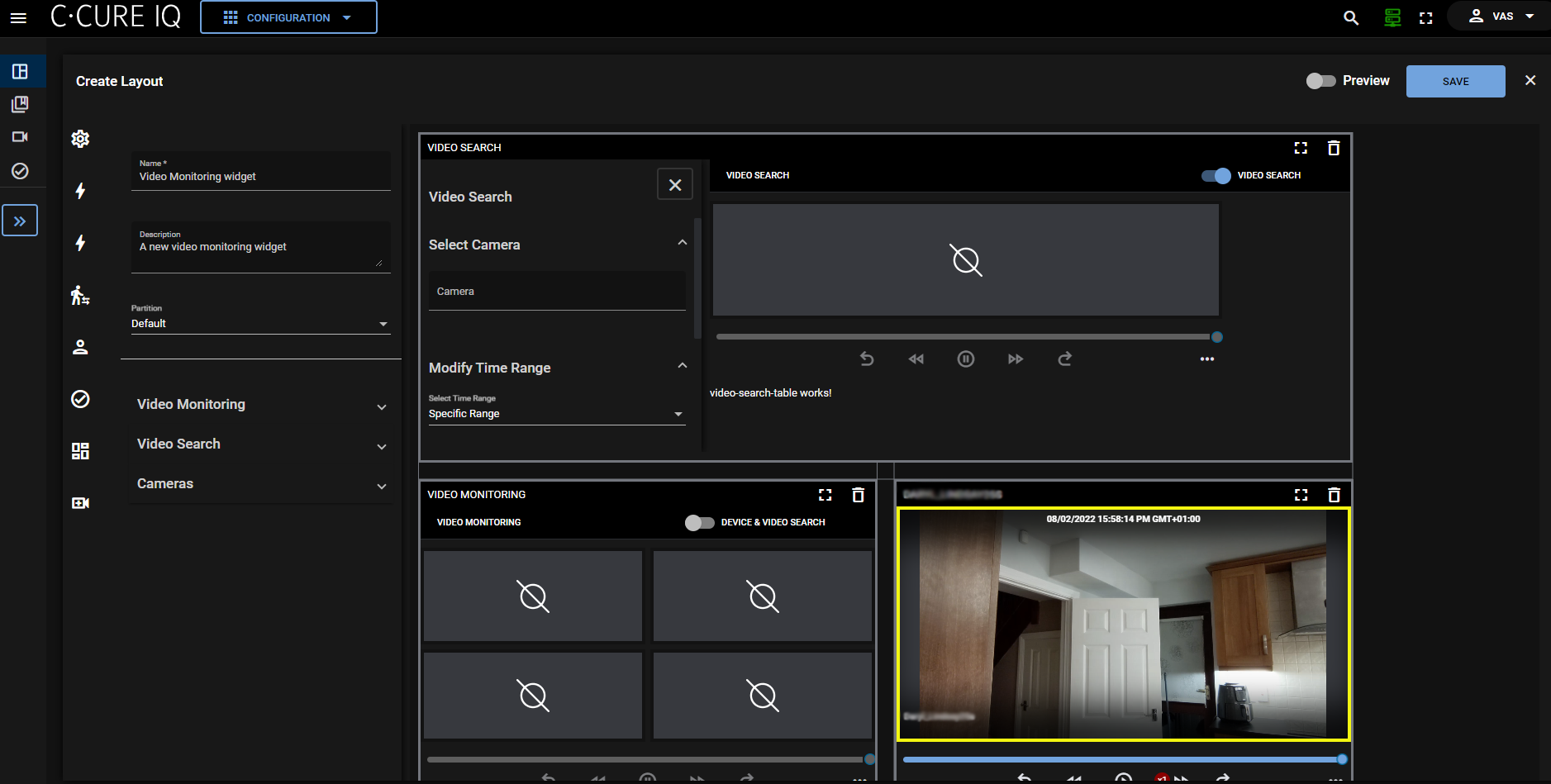
When you configure a Video Monitoring module, you can pre-configure the default view settings for the module. You can select the cameras that you want to monitor, and you can show or hide the filter options pane and the camera controls pane.