
Viewing a swipe result
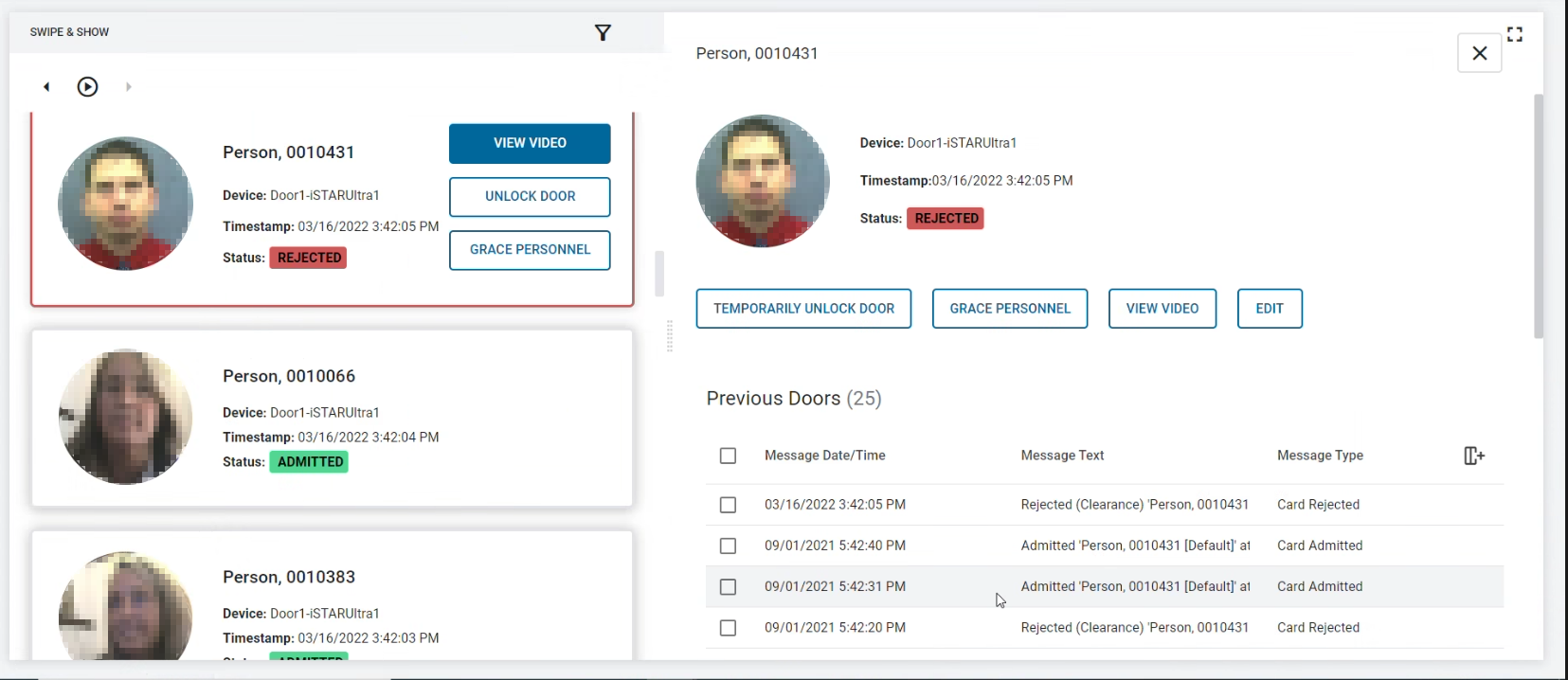
To display information about a swipe, select a personnel image from the
swipe stream. In addition to information already provided in the swipe screen, the
larger view opens and displays personnel type, personnel name, and a list of previous
card swipes and swipe results. You can perform additional actions such as Unlock Door,
Grace Personnel, or navigate to the Personnel module to view swipe history for that
person.
Note: For rejected card swipes, you can
also perform additional actions from the swipe that appears in the swipe
stream.
Note: Administrators can create object associations from the C•CURE IQ Administration Station.
- On the Monitoring page, select a web layout that contains a Swipe and Show widget.
- Configure the Swipe and Show settings.
-
In the Swipe and Show widget, click the personnel image on a
swipe.
Information associated with the swipe displays, and the swipe stream is paused.
-
Select any of the following options:
Note: Some options are only available for rejected card swipes.
- To temporarily unlock the door that rejected the card swipe, select Unlock Door.
- To reset anti-passback for the card, select Grace Personnel.
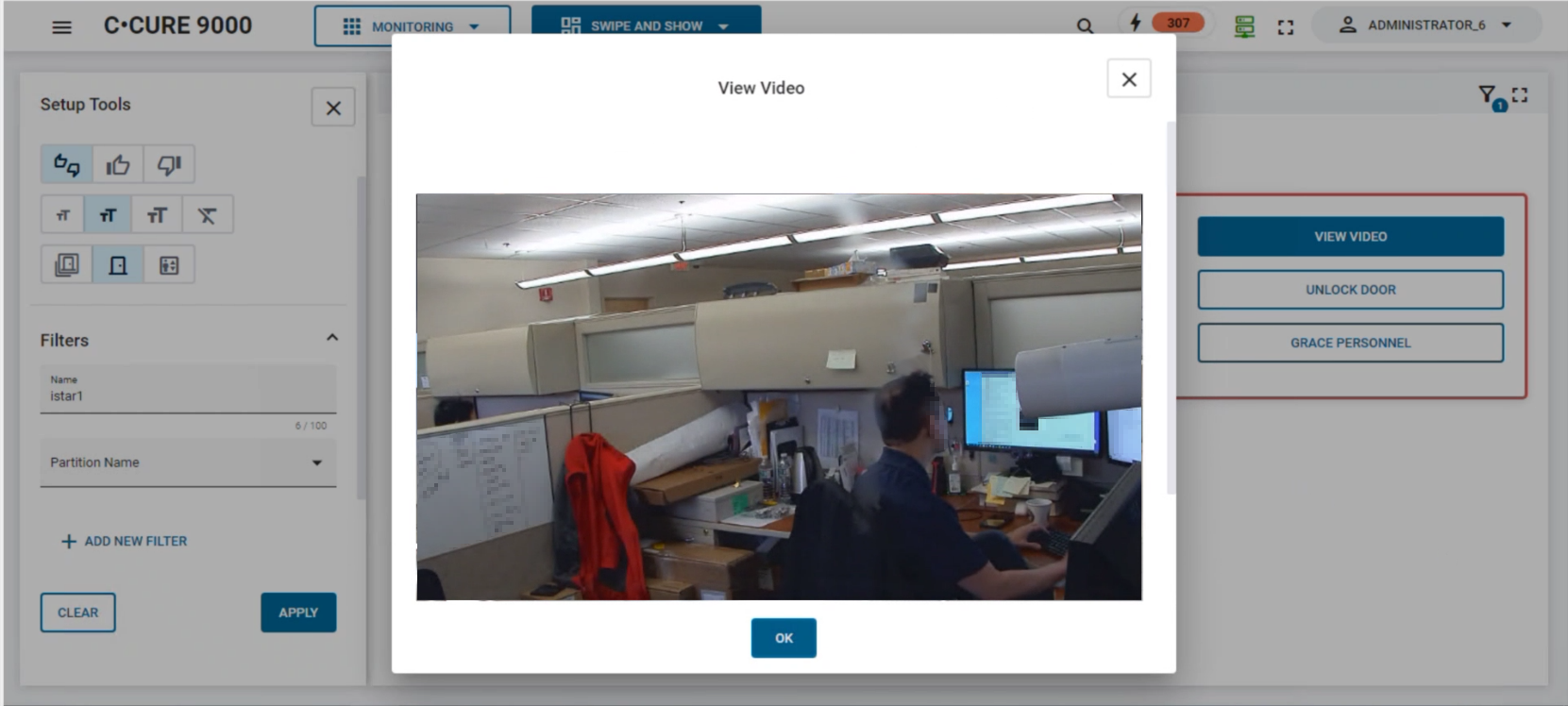
- To view a video clip that is associated with the rejected card swipe, select View Video. A popup window displays a video clip of the personnel attempting to swipe their card at the door.
- To edit the Personnel profile, select Edit. If you need to edit a rejected Personnel profile, for example, to update their clearances, you can select the Edit option.
- To unpause the Swipe and Show stream and resume Swipe and Show monitoring, click the Play icon.