
Viewing card swipes
Complete the following steps to view a live feed of card swipes from a door, an elevator, or a door group. The card swipes are displayed in descending order, with the most recent card swipe appearing first.
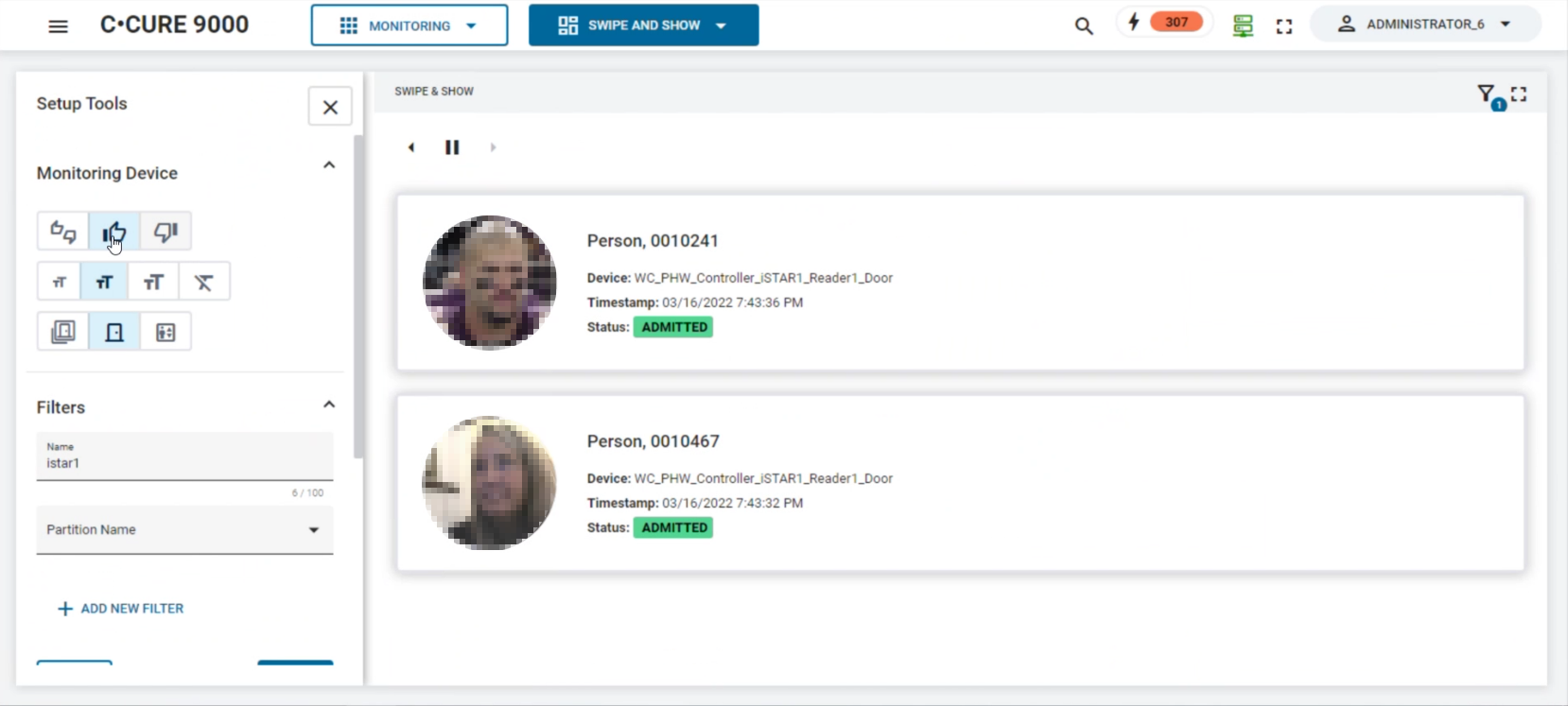
- On the Monitoring page, select a web layout that contains a Swipe and Show module.
- To display the Setup Tools pane, in the top-right corner of the Swipe and Show module, click the Filter icon.
-
On the Setup Tools pane, in
the Monitoring Device section, complete the
following steps:
-
At the bottom of the Setup
Tools pane, select the devices that you want to monitor.
The Swipe and Show module updates automatically, and displays card swipes from the devices that you select.