
Creating a camera sequence
You can link two or more camera presets into a sequence. When you run a camera sequence, the camera cycles through each of the presets defined in that sequence. You can also define the duration that the camera dwells at each preset location.
Sequences are available for PTZ cameras, but not vPTZ cameras.
- On the Video Monitoring module, add a PTZ camera to at least one of the monitoring panes.
- To enable camera controls and the Camera Sequences controls, select a pane or panes that contain a PTZ camera.
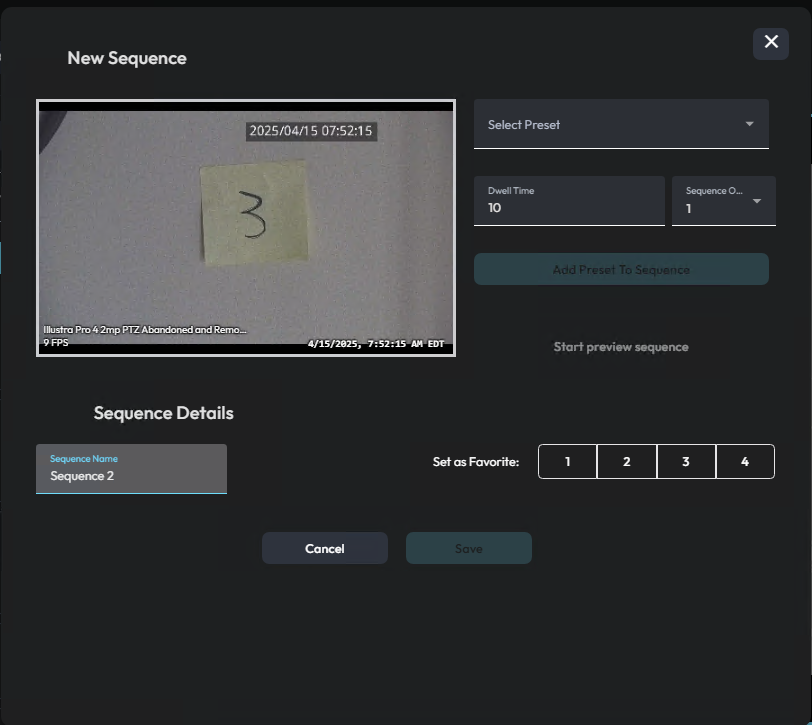
- In the Camera Controls panel, click New Sequence.
-
To add camera presets to the sequence, complete the following steps for each
preset that you want to add:
- In the Select Preset list, select a camera preset.
- Optional: In the Dwell Time field, edit the preset’s dwell time.
- In the Sequence Order list, select the preset’s position in the sequence.
- Click Add Preset To Sequence.
- In the Sequence Name field, type a name for the camera sequence.
- Optional: To save the camera sequence as a favorite, in the Set as Favorite area, click one of the number icons. For example, click 1 to save the sequence as sequence 1.
- Optional: To remove a preset from the camera sequence, click the icon in the Actions column, and select Remove.
- Click Save.