
Video controls
When you select a video pane that contains a camera, the video controls become active.
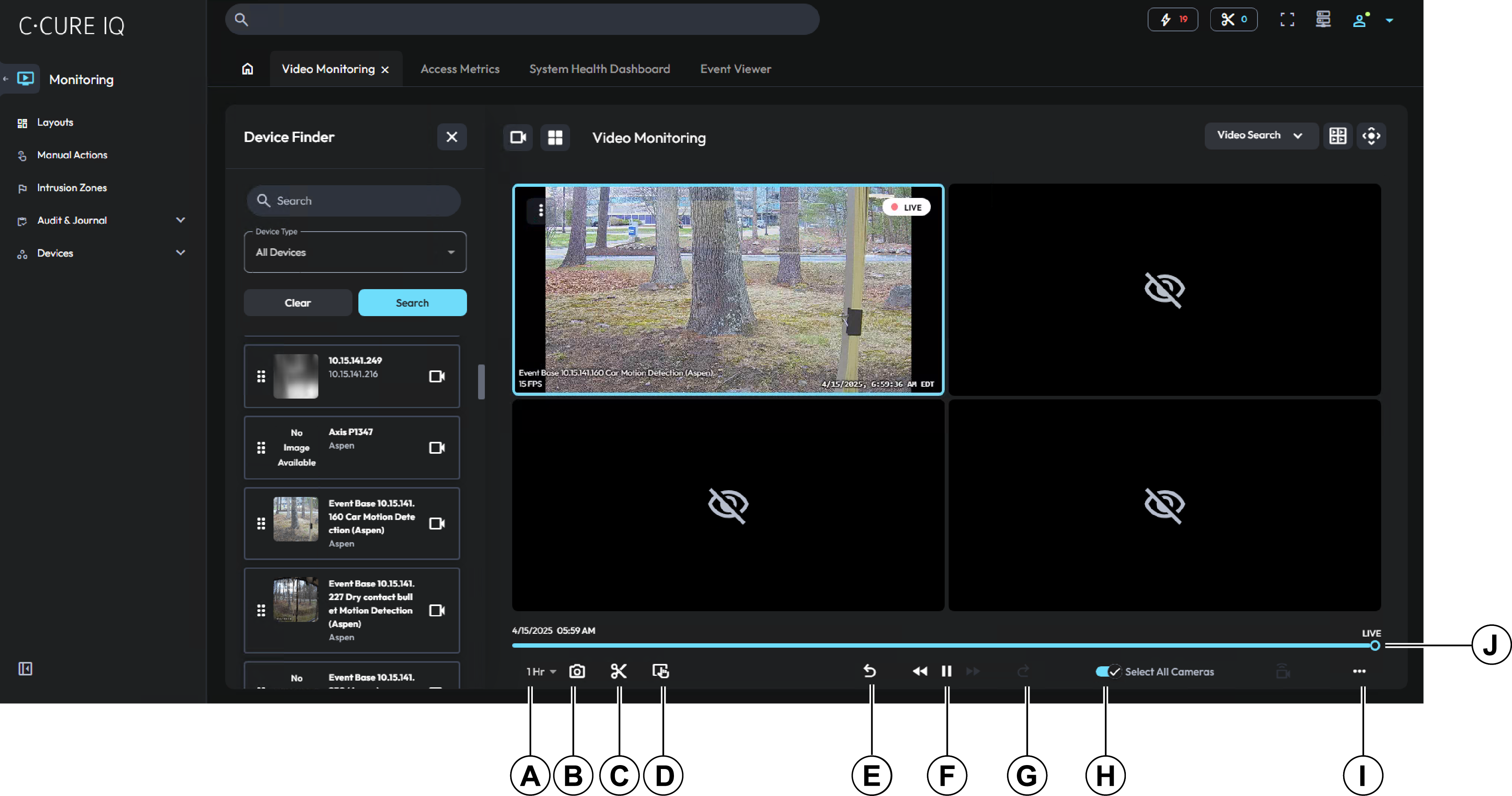
| Callout | Name | Description |
|---|---|---|
| A | Time span List | Choose from a time span of 1 hour, 6 hours, 12 hours, or 24 hours. |
| B | Snapshot | Click the camera icon to take a snapshot of the video feeds. You can save snapshots to a local folder. |
| C | Start Clip | Click the scissors icon to start recording a video clip file. Click the icon again to stop recording the clip. You can save created clips to a local folder. |
| D | Quick Download | Click to download a video clip, or to add a video clip to the clip builder. You can select from the following time spans: 30 seconds, 1 minute, 5 minutes, 10 minutes, or 30 minutes. |
| E | Jump Back | Click the jump back icon to navigate back through the selected video feeds. Choose from 30 seconds, 1 minute, 5 minutes, 10 minutes, 30 minutes, or 60 minutes. Click Specific Date & Time to choose a date and time from a calendar selector menu. |
| F | Playback controls |
Click the rewind icon to rewind the feeds at up to 32 times speed. Click the pause icon to pause the selected feeds. Click the pause button again to resume the video. Click the fast forward icon to fast forward through the feeds at up to 32 times speed. |
| G | Jump Forward | Click the jump forward icon to navigate forward through the video feeds. You can choose 30 seconds, 1 minute, 5 minutes, 10 minutes, 30 minutes, or 60 minutes. Click Specific Date & Time to choose a date and time from a calendar selector menu. |
| H | Select All Cameras | Click the toggle button to select all the monitoring frames on the screen. |
| I | More... | Click the three-dot menu icon to view more
options for the video monitoring feeds. Depending on your screen resolution,
some video controls may display in the More... menu, including:
|
| J | Video scrubber |
Click and drag the scrubber to move through the selected video panes, or click any location on the scrubber to align all selected panes to a specific time. The scrubber dynamically displays the date and time while you scroll. The time span adjusts according to the time span that you select from the time span list. To display live video in all video panes, click Live. |